Use AI appropriately to solve a novel CSS problem
Step 7: What to do
Overview
In this task we’re going to build a small page using HTML and CSS, two techniques we don’t know yet. We’re intentionally building with something we haven’t learnt yet so you can explore how to look for information using the internet.
This step is an opportunity to practice this with a practical task which is outside your current knowledge of CSS and HTML. We have provided a CodePen which contains some HTML code. Your task is to use CSS to style the HTML so that:
- The element with the class of “parent” has a dotted border.
- The element with the class of “parent” is centred on the page even if the screen size changes.
- The div elements with the class “child” have background colors, borders, rounded corners and margins between them.
- The div elements with the class “child” stay inside the element with the class “parent” even if the screen size changes.
- The div elements with the class “child” are centred within the element with the class “parent”.
You must not change the HTML in anyway.
You may use any colours you like - they aren’t the important bit in this task.
Here are some visual examples:
On a large screen
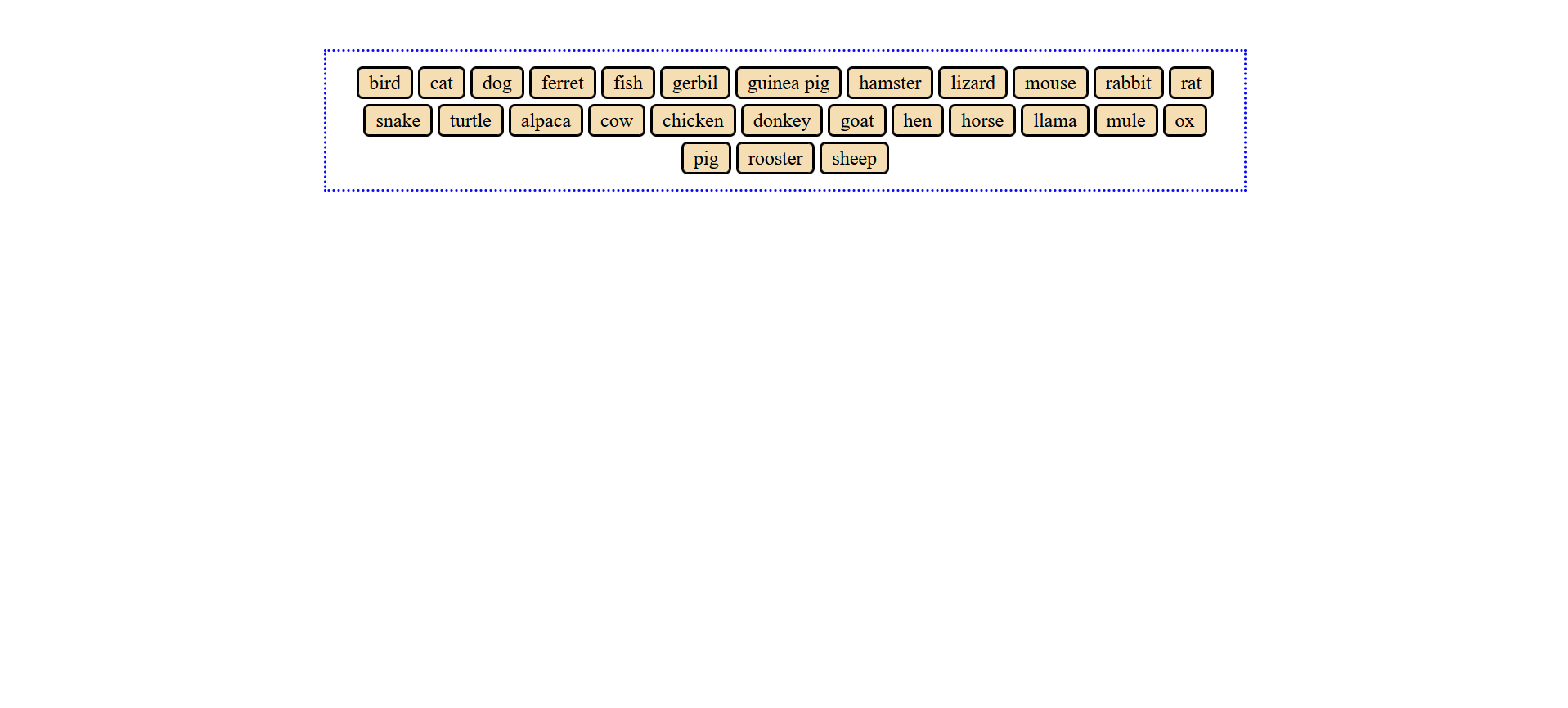
On a much smaller screen
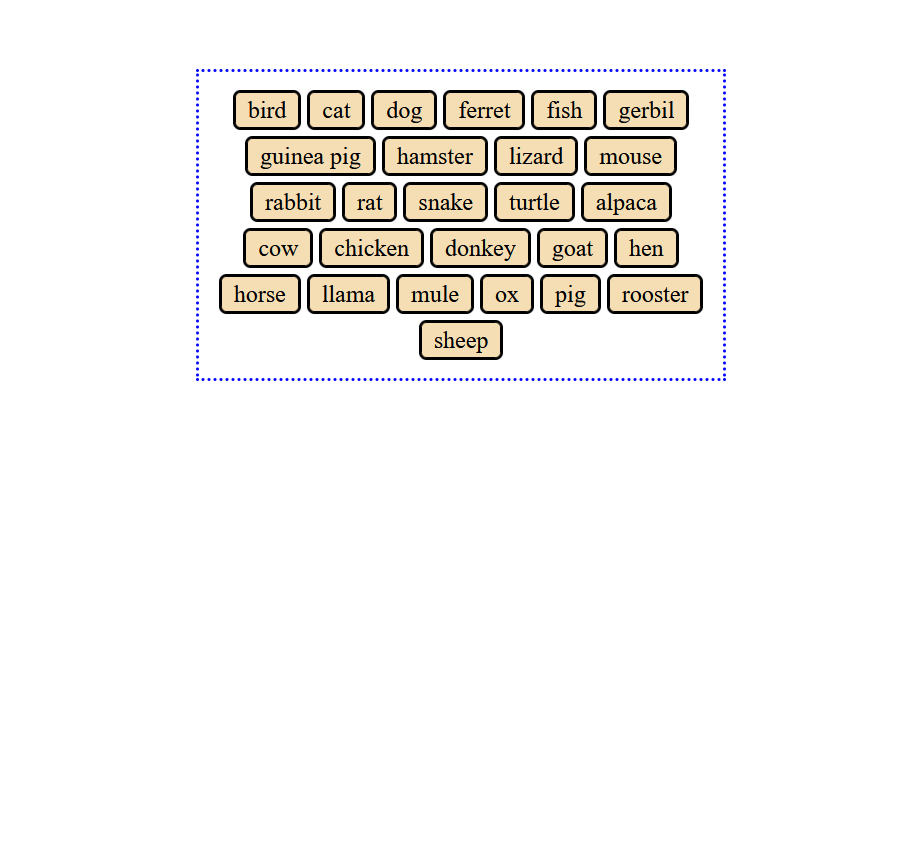
Assuming you were new to HTML and CSS when you started this course, this task is outside your current knowledge. This makes it an excellent candidate for internet or AI assistance, as you can use these tools to help you understand the new concepts.
(You can also give it a go without these tools if you feel up for it 👀)
What Should You Do?
You are not allowed to generate code using AI. You must write your own code.
1. Fork the CodePen
Fork the exercise CodePen into the CodePen account you created in step 5.
2. Make a Plan
Start by thinking about what you need to know to solve this problem.
What might be a good first question to search for? What steps might be needed to reach the end result? What knowledge do you lack and need to find out?
3. Search for answers
Use the internet or an AI tool (or both) to help you solve the problem. It must not involve copying code or blindly following AI output without understanding why.
Revisit step three for more advice on how to use AI tools. If you’re stuck, Google or ask in the #step-7-questions-support channel on Slack.
4. Self Check
Look over the code you have written.
- Do you understand it all? Can you explain it out loud? What do you not understand?
- Has any code been pasted from the internet or AI?
- What worked or didn’t work when searching the internet or prompting AI?
5. Create a Google Doc
Create a Google Doc.
📝Note
If you are new to Google Docs, you may find this guide on what Google Docs is and how to use it useful.
6. Put your name in the document name
Include your given name or your family name in the title of the Google Doc.
💡Search the Web
How to change document name in Google Docs7. Make your Google Doc public
Change the sharing settings of your Google Doc to “Anyone with the link can view”.
💡Search the Web
How to share Google Docs to public8. Fill out your Doc
Please add the following to your google doc:
- A link to your CodePen (please note that volunteers probably won’t give you a full code review but this is useful context for them)
- A screenshot of the output in CodePen
- Your answers to the questions in the ‘4. Self Check’ section above
9. Submit the Google Doc link
Submit the link to the Google Doc in Step 7 on the CYF Course Platform.
Step 7: How to check your work
A volunteer will review your submission and check that it meets the acceptance criteria. They will give you feedback on your submission and help you make any changes needed to meet the criteria.
Here are the criteria you need to meet:
Step 7: How to show us
How to get help
When you have a question, ask it.
Remember, Code Your Future is a community of adults sharing skills. We are all here to help each other, and learn. You are meant to ask questions at Code Your Future. When you see someone else has a question, help them if you can.💡Code Your Future is a Community
When you have questions about coursework, ask in a
You do not need to wait for a workshop to ask a question. You can ask questions in Slack at any time. We are here to help you understand and complete this course. Our goal is to help you learn.
Step 7: Extend Your Skills
Add Responsive Design
This is an additional task for those who want to stretch themselves and try something else. It is not compulsory in anyway.
The task is to make the page look like the below on screen sizes below 500px wide:
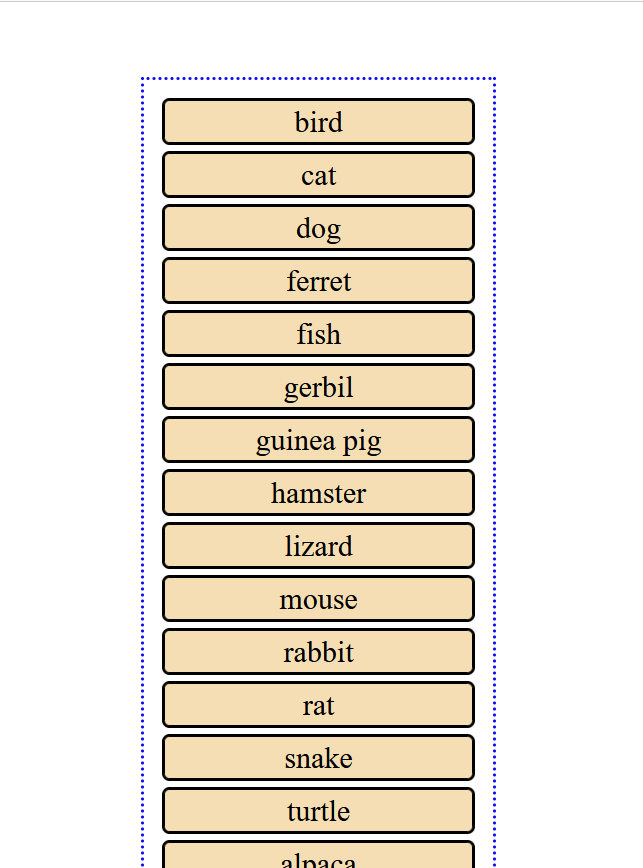
You will need to use media queries.